



How to scan your documents
Here you’ll find instructions on how to scan your documents using your phone.
Turn your paper documents into digital files
When applying for support, you need to include every page of your attachments, and all the text must be easy to read. If an attachment is only one page, you can simply take a photo of it with your phone. If it has several pages, it’s better to scan them so that the whole document is saved as a single file.
Always check that all pages are included and the text is easy to read before submitting your application.
Scan with iPhone
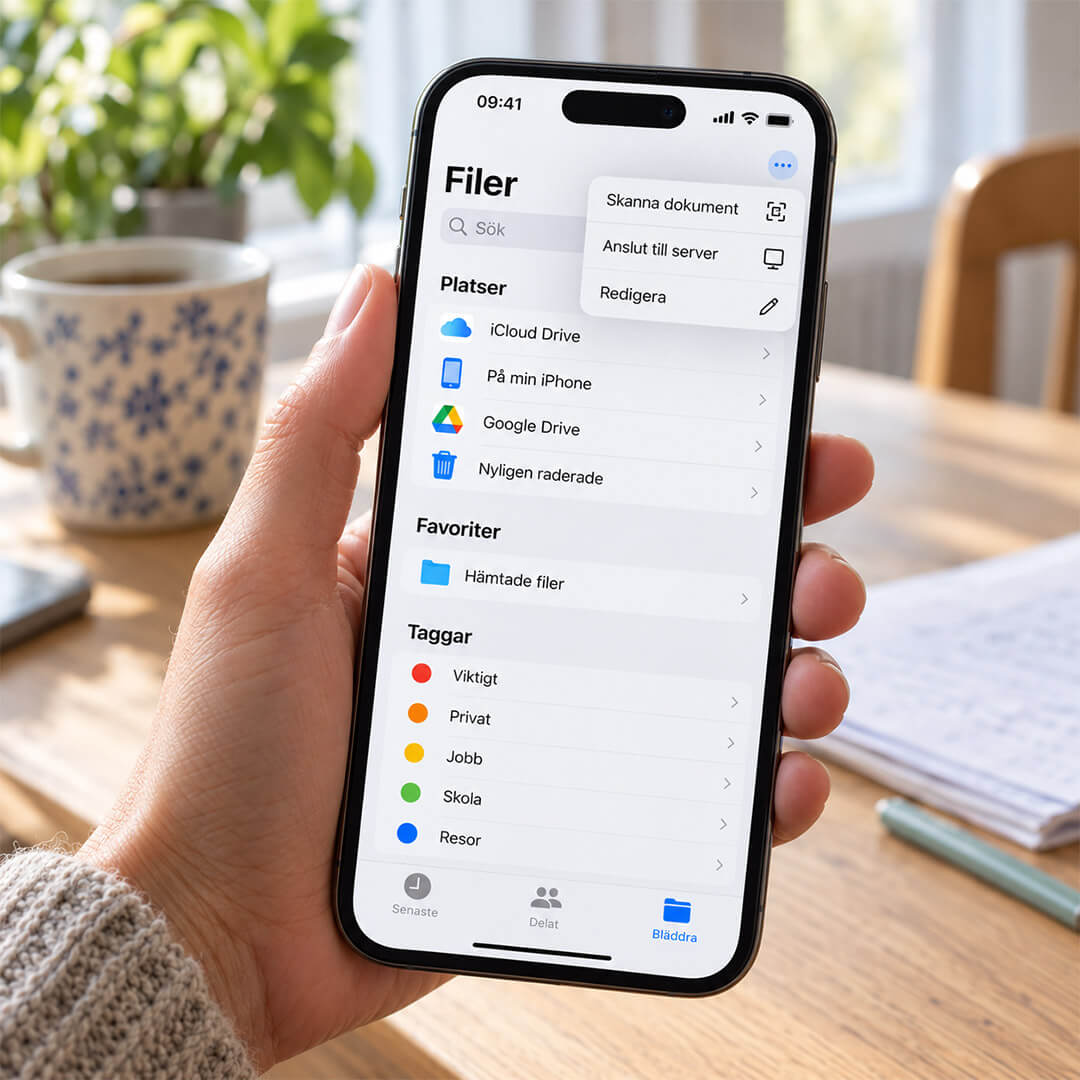
You can scan your attachments directly using the Files app on your iPhone.
- Open the Files app and go to the folder where you want to save your document.
- Tap the three dots at the top of the screen and select Scan Documents.
- Hold your phone over the first page. Your iPhone may scan it automatically, or you can take the picture yourself.
- Repeat for each page until you’ve scanned the whole document.
- Check that all pages are included and the text is easy to read.
- Tap Done, choose where to save the document and tap Save.
The whole document is now saved as a single file that you can attach to your application.
Scan with Android
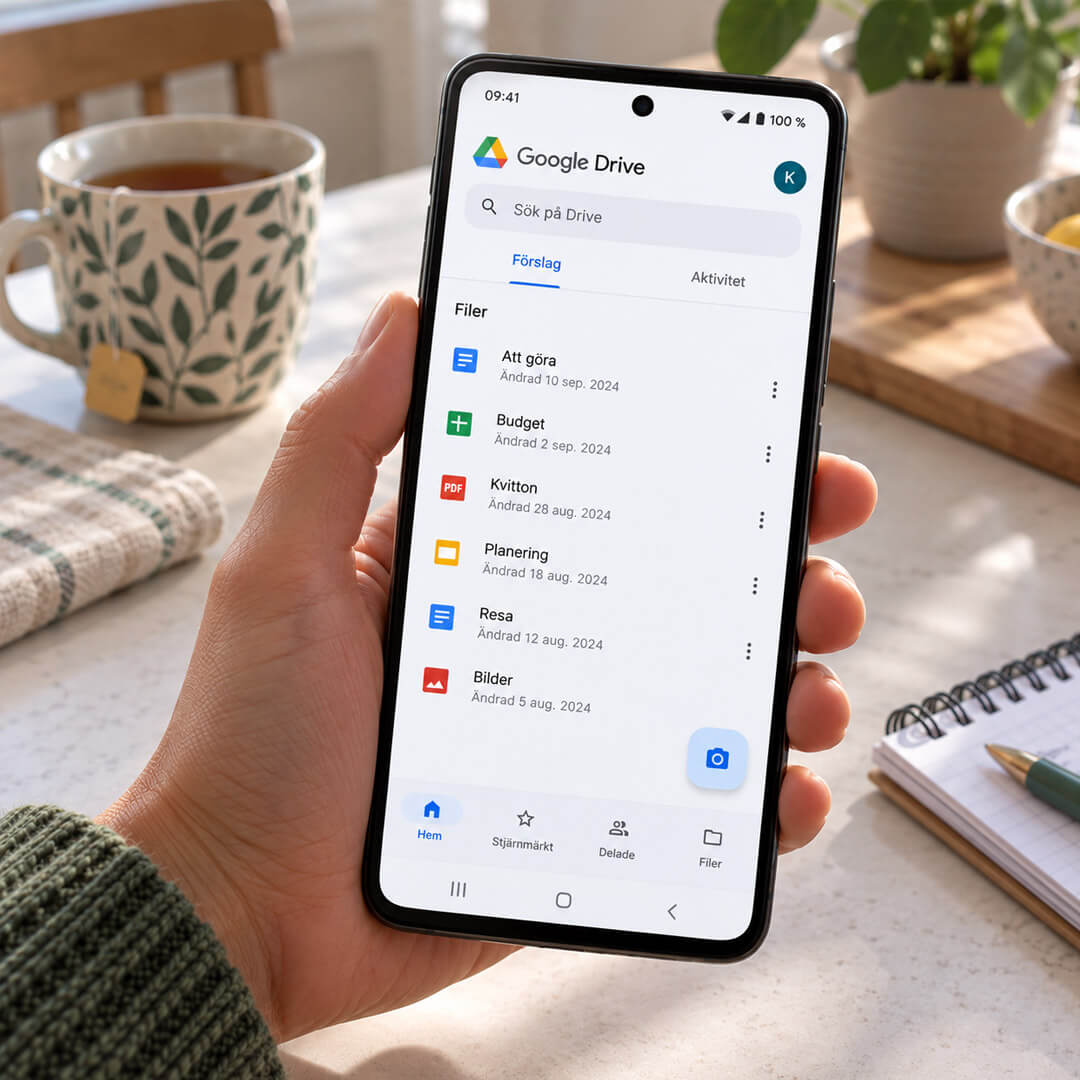
You can scan your attachments using the Google Drive app.
- Open Google Drive on your phone.
- Tap the camera icon in the bottom-right corner.
- Hold your phone over the first page and take a picture.
- Check that the text is easy to read. Then scan the next page and continue until you’ve scanned the whole document.
- When you’re finished, tap Done.
- Give the document a clear name and tap Save.
The whole document is now saved as a single file in Google Drive.
Does it look different on your phone?
Different phones and operating system versions may look different, so the steps above might not match exactly what you see on your screen. There are also other ways to scan documents besides the ones we’ve shown here.
Unfortunately, FVO cannot provide technical support with scanning documents on your phone.
Have you got all your attachments ready?
Go through the attachment checklist before submitting your application. It shows you which attachments you need to include and helps you check that you haven’t missed anything.